
Automating a daily cloud-to-local mirror on a Raspberry Pi is an excellent way to secure photos, camera rolls, and file assets. By leveraging rclone, you can build a sync engine that runs in the background, only downloads newly added files, and automatically keeps its authentication sessions alive indefinitely.
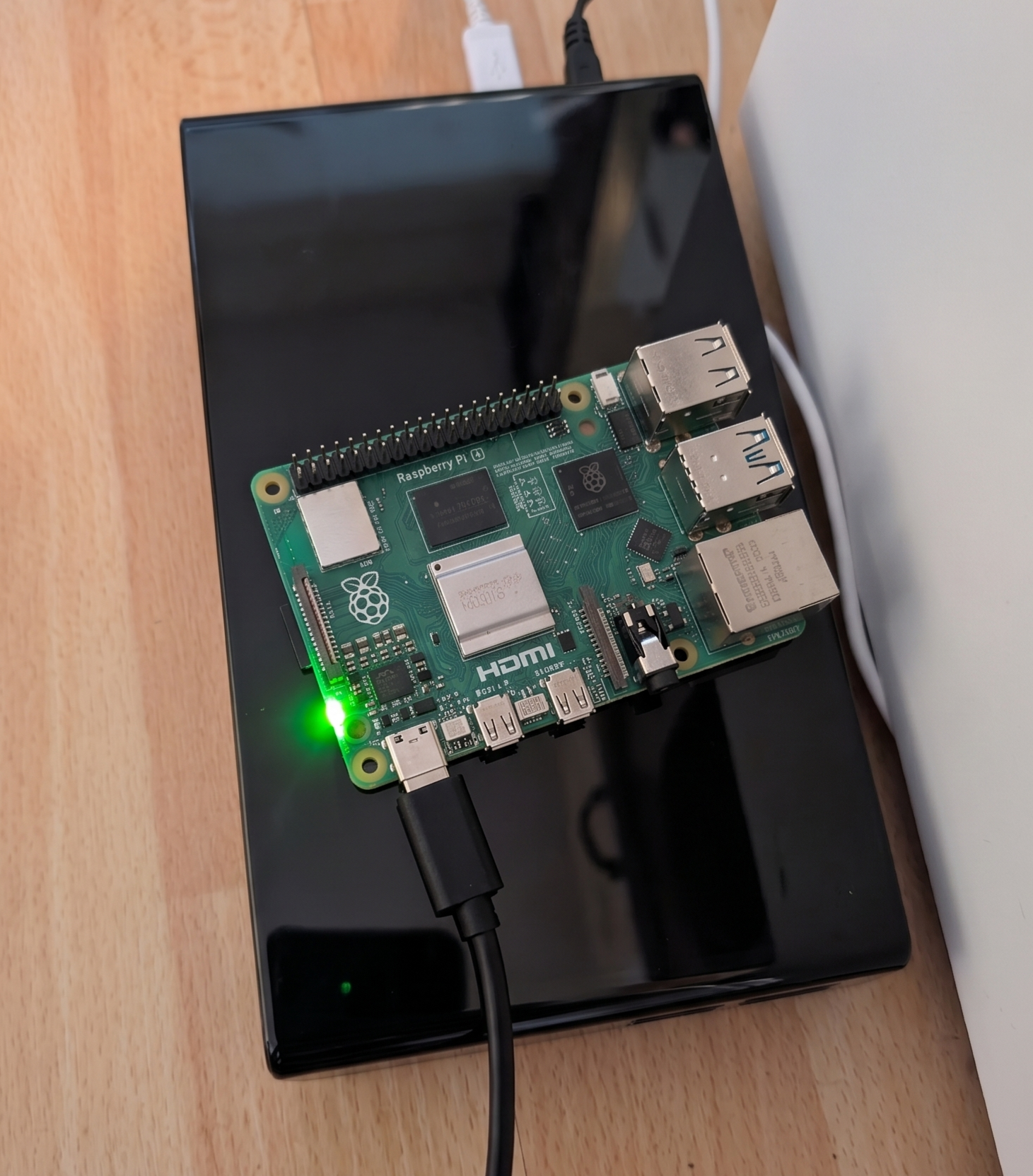
This straight-forward recipe covers the entire implementation process from scratch, using clear configurations tailored for headless Linux systems.
Step 1: Install Rclone
To avoid outdated, modified software variations packaged in old repository distributions, install the official binary payload directly from the source:
curl https://rclone.org/install.sh | sudo bash
Step 2: Configure the OneDrive Remote
Because a headless Raspberry Pi does not have a web browser, initialization uses a remote handshake mechanism. Begin the interactive workflow utility configuration:
rclone config
- Select to create a new remote configuration
- Assign a label name to the target remote, such as
myonedrive. - Locate the option number corresponding to Microsoft OneDrive and enter it.
- Leave advanced setup fields blank by pressing
Enter. - When prompted with
Use auto config?, select No (n). (Or yes “yes” if you have a Pi with graphical user interace and a browser… and just follow the instructions)
Open the authentication link on another computer with a web browser if you are using the headless variant.
Finally, select option 1 for OneDrive (personal) when prompted with the config_driveid configuration menu to bind the core asset directory. It will typically show you multiple options, The one you want is likely the first, whereas the rest of the options don’t have human friendly names (UUID-like).
Step 3: Build the Automation Script Wrapper
System cron loops require explicitly hardcoded absolute system path directives. Create a dedicated shell execution utility block file in your directory:
nano ~/rclone_backup.sh
Here is a script you can use, just make sure to adjust the path variables for your system profile environment:
#!/bin/bash# Define clear system absolute mapping pathwaysRCLONE_BIN="/usr/bin/rclone"CONFIG_PATH="/home/piuser/.config/rclone/rclone.conf"LOG_FILE="/home/piuser/rclone_backup.log"echo "=== Sync pipeline execution started: $(date) ===" >> "$LOG_FILE"# Run incremental file copying task mapping$RCLONE_BIN copy myonedrive:Pictures/ /home/piuser/photobackup/ \ --config "$CONFIG_PATH" \ --log-file="$LOG_FILE" \ --log-level INFOecho "=== Sync pipeline execution completed: $(date) ===" >> "$LOG_FILE"
Save out, close the editor window interface, and grant the appropriate binary execute properties:
chmod +x ~/rclone_backup.sh
Step 4: Create the Scheduled Cron Routine
Open up the automated crontab task architecture controller interface menu:
crontab -e
Append the execution schedule entry line to the very bottom of the parameters file to automate the incremental file sync task sequence at exactly 2:00 AM every single night:
0 2 * * * /home/piuser/rclone_backup.sh
Save and close. The system scheduler will output a verification indicating crontab: installing new crontab.
Appendix: Fixing Version-Related Auth Failures
If you initialized an old, pre-packaged repository release of rclone, you might run into an installation loop where directory listings function cleanly but data streams throw immediate 401 Unauthenticated errors. This occurs because old builds pass broken structural metadata properties or inject corrupted global scopes.
How to Resolve:
- Purge and Update: Clean out the old software build stack cleanly using
sudo apt remove rcloneand install the fresh engine via the script in Step 1. - Edit the Configuration: Open your rclone configuration file manually to fix formatting parameters:Bash
nano ~/.config/rclone/rclone.conf - Fix the Tenant Line: Look closely under your remote profile block heading. If you find a malformed line reading
tenant = 1, update it to the proper global Microsoft baseline parameter target. - Purge the Corrupted Token: Completely delete the long, multi-line
token = ...string array inside that block so that bad parameters are not recycled by the binary. - Re-Authenticate: Reinitialize a clean, uncorrupted authentication loop token refresh chain immediately from the Pi terminal window:Bash
rclone config reconnect myonedrive:

